Data Cloud Integration
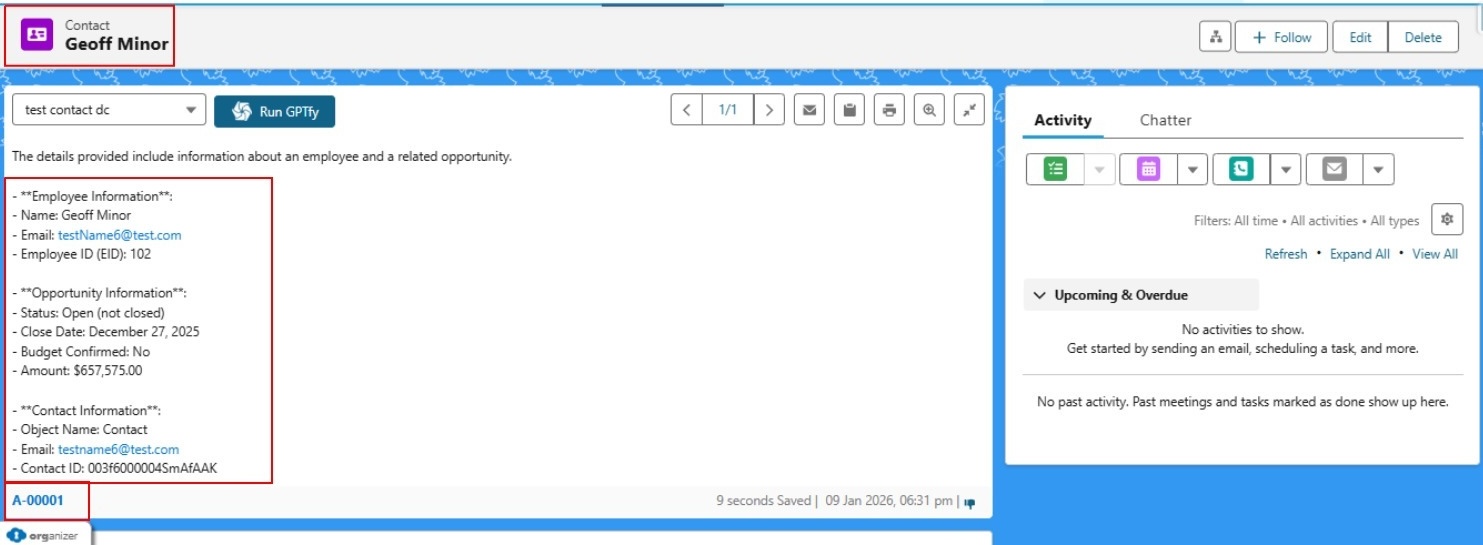
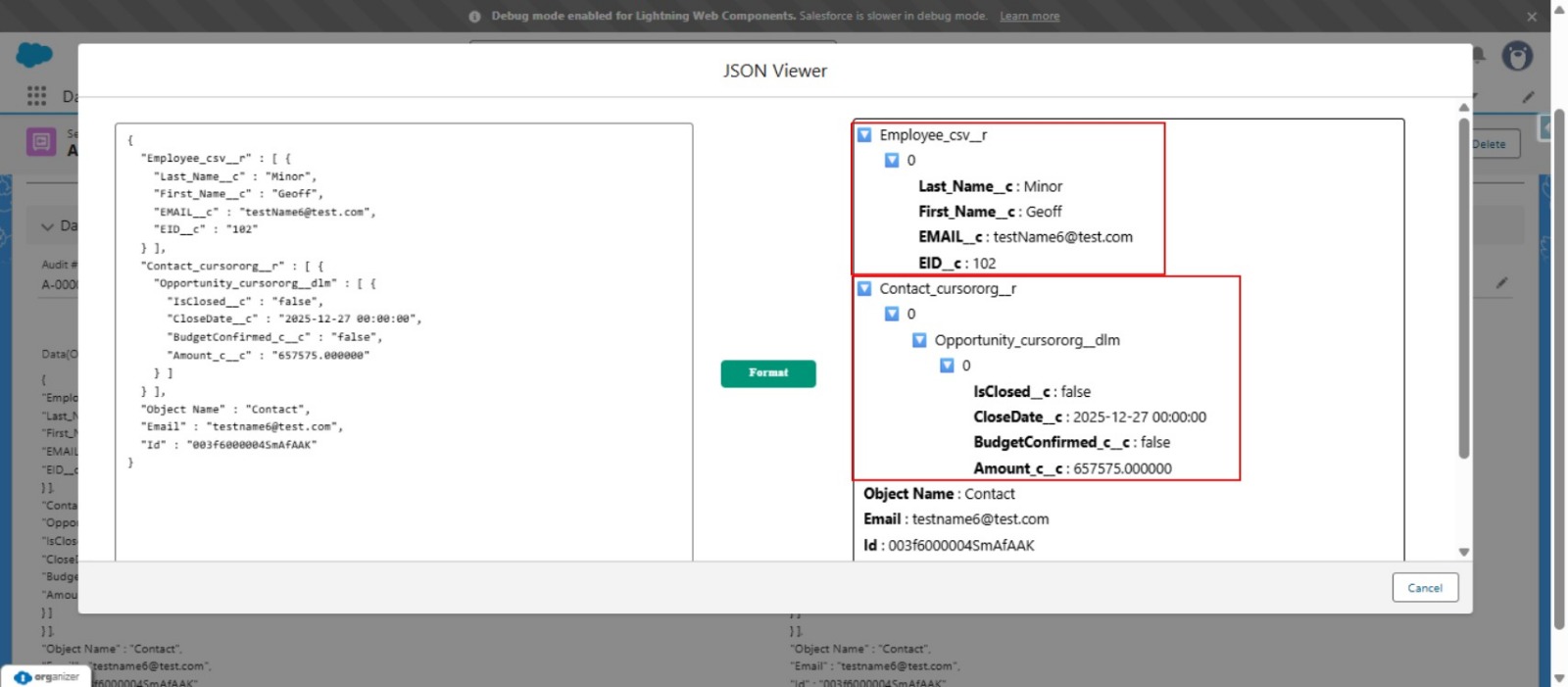
GPTfy now supports seamless integration with Salesforce Data Cloud, enabling you to leverage AI capabilities across your unified data platform. This feature allows GPTfy to access and process data from Data Cloud objects, whether your Data Cloud contains data from your org only, or aggregates data from multiple connected source orgs.
What You Can Do:
- Query Data Cloud objects in your org and use them with GPTfy prompts
- Access unified data aggregated from multiple connected source orgs into your Data Cloud
- Process Data Cloud objects with the same security layers and anonymization as standard Salesforce objects
How Data Cloud Integration Works
GPTfy works with Salesforce Data Cloud in two configurations:
| Configuration | Description | Data Source |
|---|---|---|
| Single Org | Data Cloud is enabled in your org and contains data from the same org only | Data originates from your current org |
| Hub-and-Spoke | Data Cloud is enabled in your org (hub) and aggregates data from multiple connected source orgs | Data flows from connected source orgs into your Data Cloud |
Prerequisites
Before configuring Data Cloud integration in GPTfy, ensure the following requirements are met:
1. User Permissions
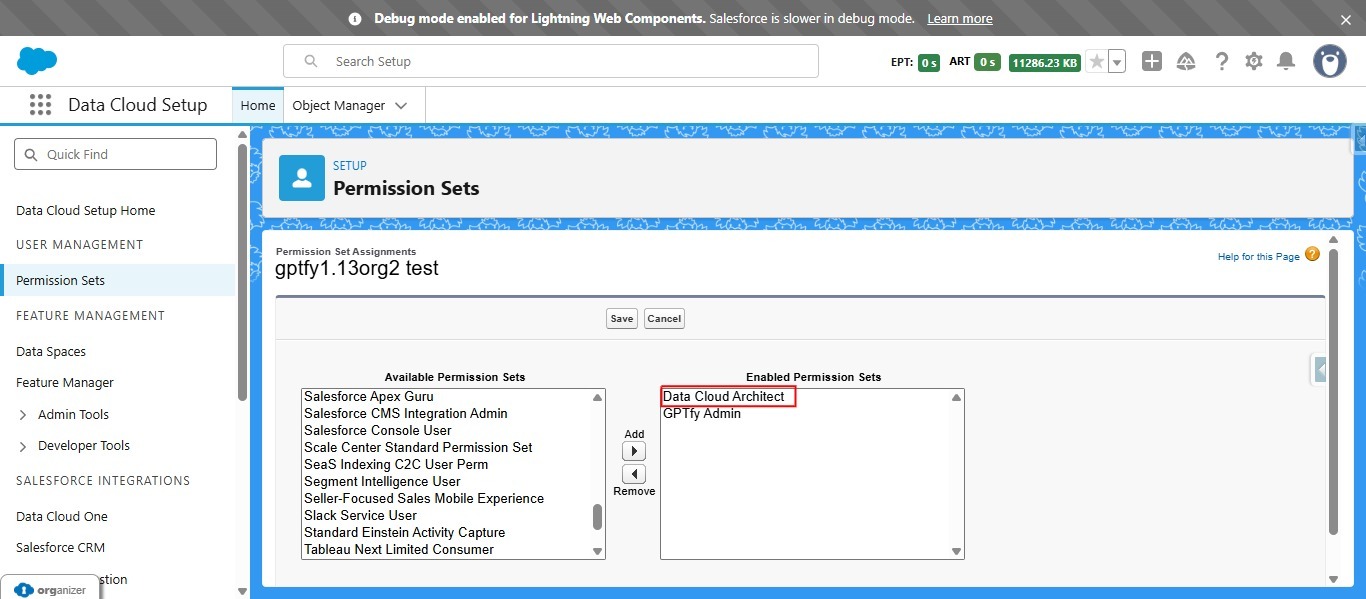
The user configuring the integration must have:
- Data Cloud Architect permission set assigned
- Access to Data Cloud objects
- Administrative access to GPTfy
2. Connected App Setup
Create a Connected App in Salesforce for secure authentication:
- Navigate to Setup → App Manager → New Connected App
- Enable OAuth Settings
- Configure the appropriate OAuth Scopes:
apirefresh_tokenoffline_access
- Save and note the Consumer Key (you'll need this as the Client ID)
💡 Pro Tip: Keep your Consumer Key and Private Key secure. These credentials provide access to your Data Cloud data.
3. Named Credentials
Create two Named Credentials for authentication:
Named Credential 1: Salesforce Authentication
- Purpose: Generates JWT tokens for Salesforce authentication
- Type: Legacy
- Authentication Protocol: No authentication
- Identity Type: Anonymous
- URL: Your Salesforce instance URL
Named Credential 2: Data Cloud Access
- Purpose: Fetches data from Data Cloud objects in your org
- Type: Legacy
- Authentication Protocol: No authentication
- Identity Type: Anonymous
- URL: Your Data Cloud instance URL
Learn More: How to create Named Credentials in Salesforce
4. Private Key File
Upload your private key file (.key or .pem format) to Salesforce:
- Go to Files or Documents
- Upload your private key file
- Note the Record ID of the uploaded file (you'll need this in configuration)
Configuration Steps
Step 1: Enable Data Cloud Feature in GPTfy
- Navigate to GPTfy Cockpit
- Go to AI Settings → Preferences tab
- Scroll to the Data Cloud Configuration section
Step 2: Configure Data Cloud Settings

Fill in the following fields to establish the connection:
| Field | Description | Example |
|---|---|---|
| Enable for Data Cloud | Toggle this ON to activate Data Cloud integration | ✓ Enabled |
| Salesforce Domain URL | Your current org's domain URL from Setup → My Domain | https://mycompany.my.salesforce.com |
| Salesforce Client Id | Consumer Key from the Connected App you created | 3MVG9...ABC123 |
| Salesforce Admin User Name | Username of the admin user with Data Cloud access | admin@mycompany.com |
| Salesforce Private Key File Id | Record ID of the uploaded private key file | 0695g000000ABCDEF |
| Salesforce Auth Named Credential | API name of the Named Credential for JWT token generation | Salesforce_Auth_NC |
| Data Cloud Named Credential | API name of the Named Credential for Data Cloud access | DataCloud_Access_NC |
Step 3: Save Configuration
- Click Save to store your Data Cloud configuration
- GPTfy will validate the connection in the background
⚠️ Important: Ensure all fields are filled correctly. Incorrect values will prevent GPTfy from connecting to Data Cloud.
Using Data Cloud Objects in Prompts
Once Data Cloud is configured, you can use Data Cloud objects just like standard Salesforce objects in your Data Context Mapping and prompts.
Step 1: Create or Edit a Prompt
- Navigate to GPTfy Cockpit → Prompts
- Click New to create a new prompt or select an existing one
Step 2: Configure Prompt Command
- Enter a descriptive Prompt Name
- Specify the Prompt Command that will trigger the AI action
Step 3: Configure Data Context Mapping
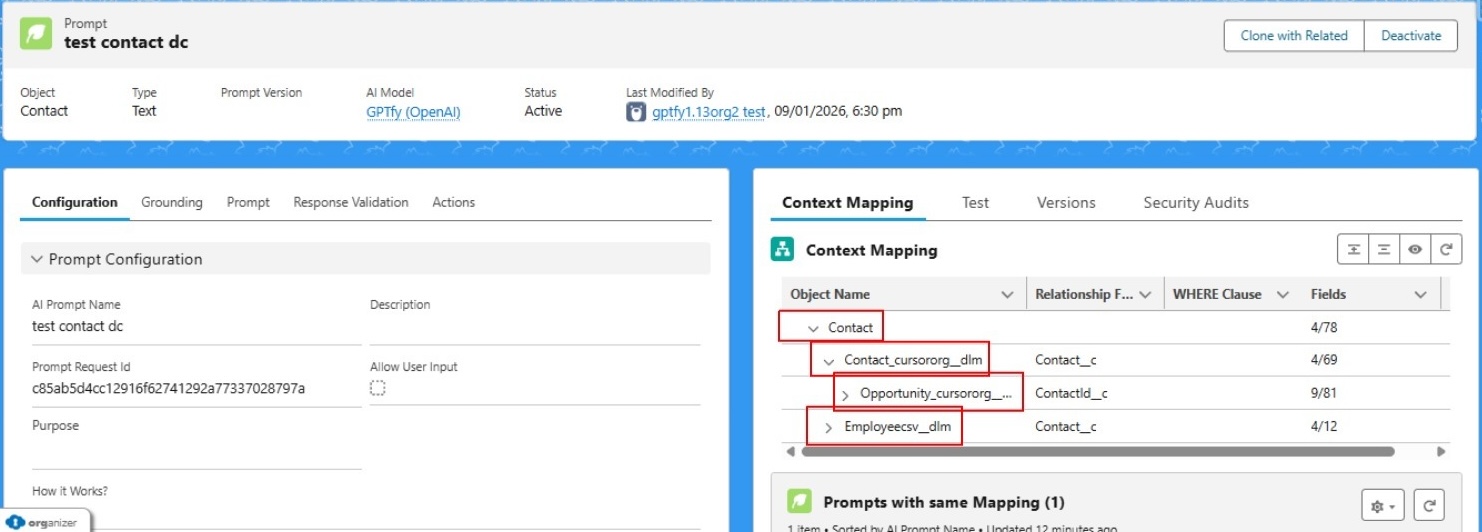
- Create a new Data Context Mapping or select an existing one
- In the Target Object dropdown, you'll now see Data Cloud objects listed alongside standard Salesforce objects
- Select the Data Cloud object you want (e.g.,
Unified_Individual__dlm,Customer_360__dlm) - Configure Field Mappings to select which Data Cloud object's fields and save the mappings
💡 Pro Tip: Data Cloud objects typically end with
__dlmsuffix (Data Lake Model).
Step 4: Activate the Prompt
- Click Activate to make the prompt available
- The prompt is now ready to use with Data Cloud objects
Step 5: Run the Prompt
- Navigate to a Salesforce record
- Execute the prompt to process data from Data Cloud
- GPTfy will:
- Authenticate to Data Cloud using your Named Credentials
- Fetch the data from the specified Data Cloud object (including data from connected source orgs if using hub-and-spoke)
- Apply any configured security layers for anonymization
- Send the processed data to the AI model
- Return the AI-generated response