Add Prompt Components(JSON Prompt)
Overview
Accelerate field updates. Reduce manual effort. Improve consistency.
Updating fields manually slows your process and invites errors. GPTfy allows you to automatically populate multiple fields based on AI-generated responses, saving time and improving record quality.
Let’s dive in!
- Create custom actions for your prompts
- Fine-tune for length, tone, and language
- Auto-update fields with AI response data
1. Set Up a JSON Prompt
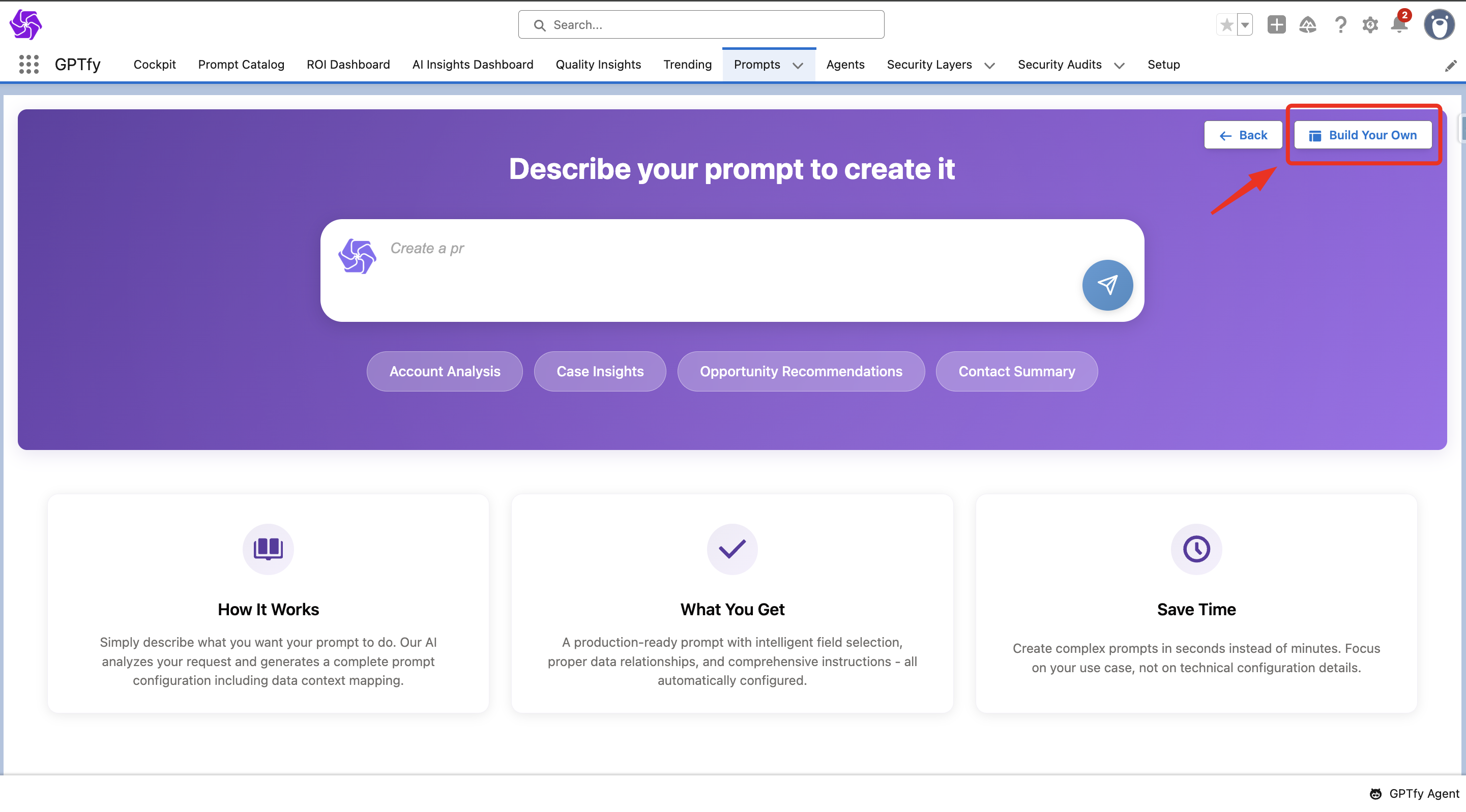
- Navigate to GPTfy → Prompts Tab
- Click New Prompt → Select TBuild Your Own
- Choose Type: JSON
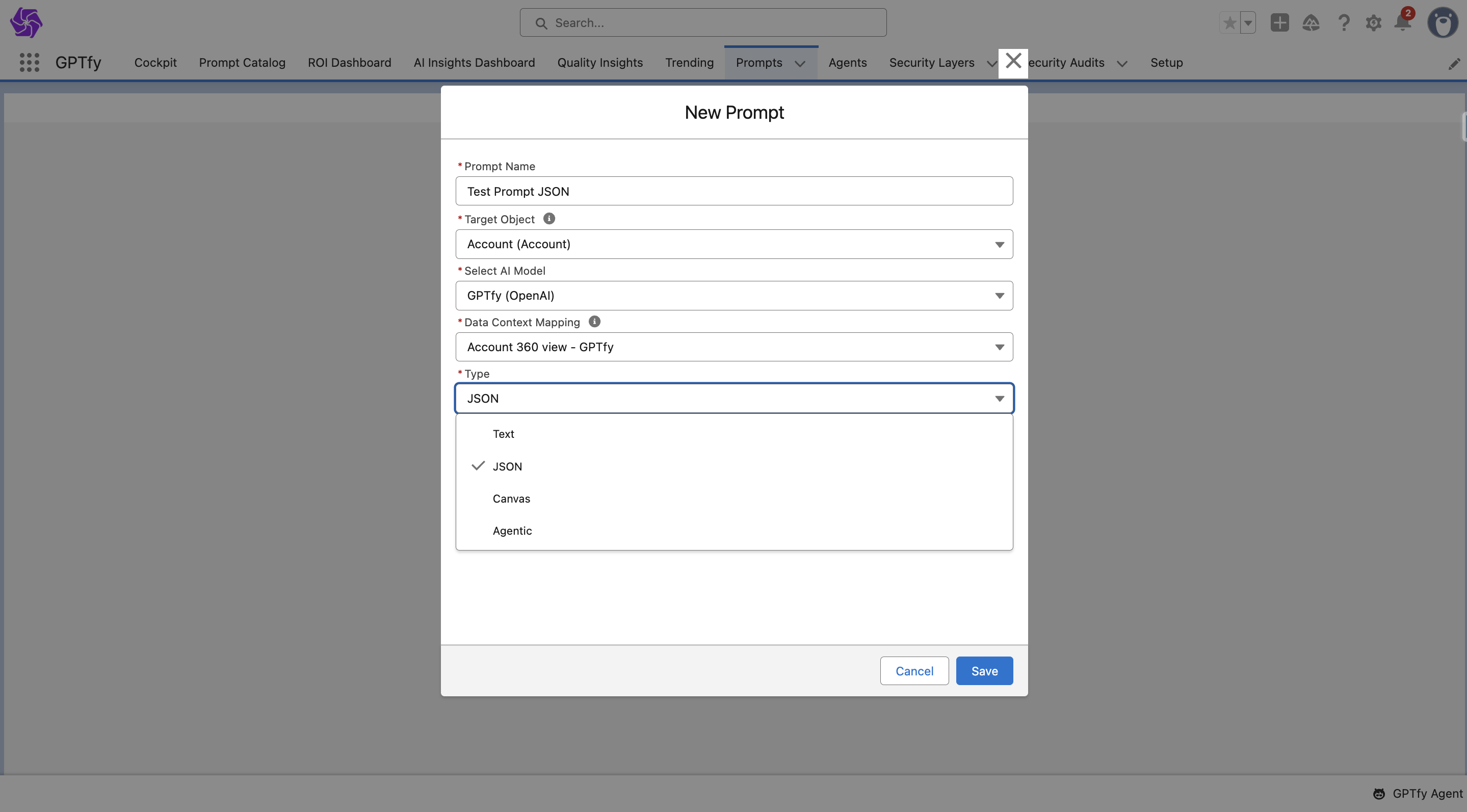
- Save your new prompt
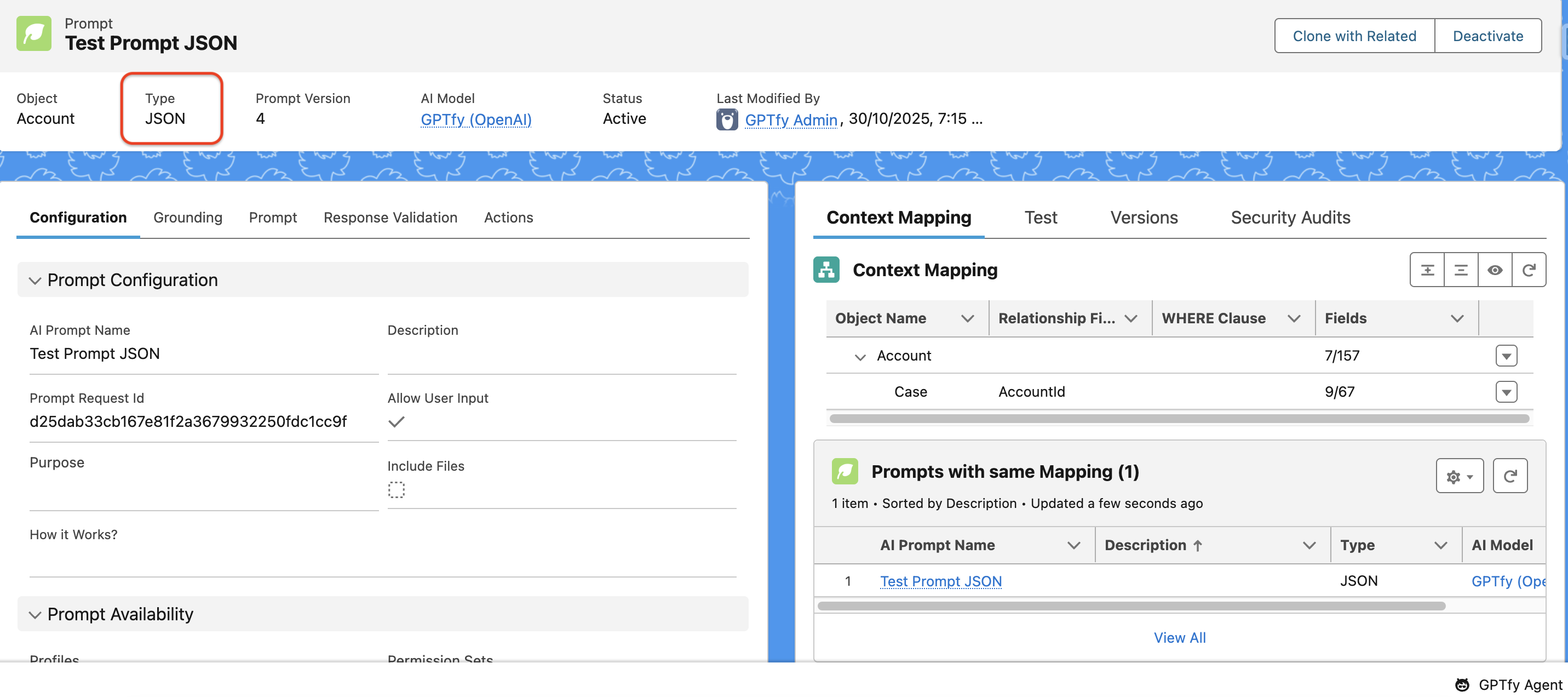
2. Add Prompt Components
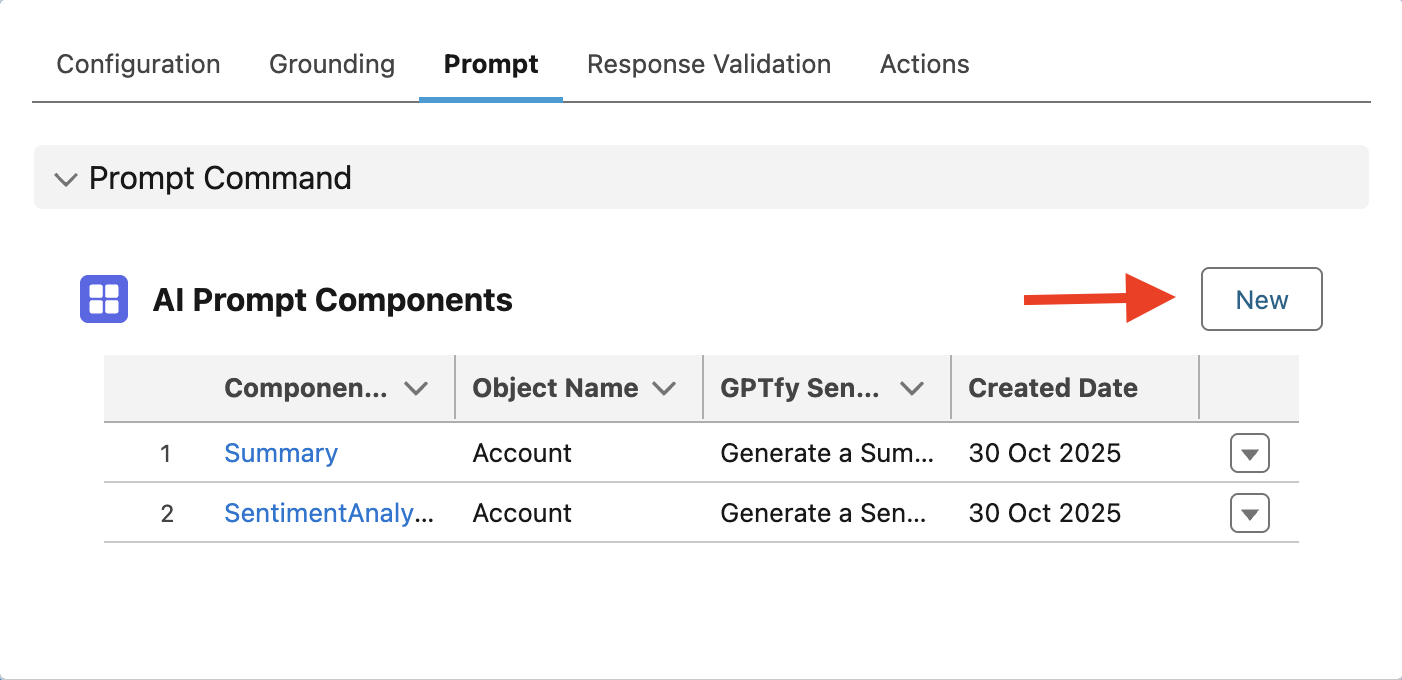
-
In the Prompt Components panel, click New
-
A pop-up window appears. Fill in:
- Component Name (similar to action name)
- Target Object (must match your Mapping)
- Action (defines what AI should generate)
- Important: For AI to perform a specific action, Add a custom Action in Prompt component Object in Object Manager → Action field → Picklist Values.
- Length, Language, Tone, Format
Important: For AI to perform a specific action, Add a custom Action in Prompt component Object in Object Manager → Action field → Picklist Values.
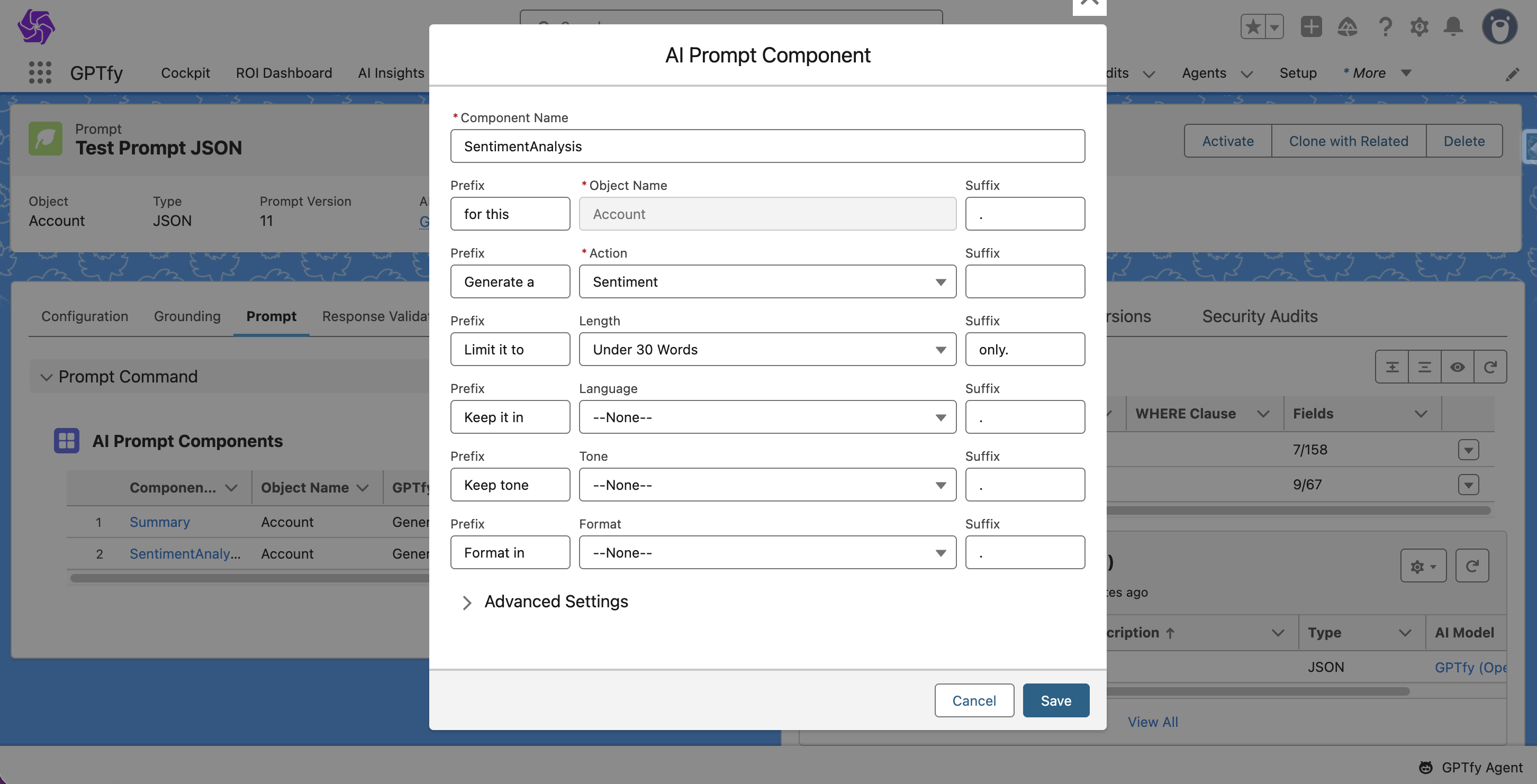
Note: Toggle Prefix/Postfix in AI Settings → Preferences.
When enabled, each component will be wrapped and allow editing of prefix & suffix.
3. Configure Prompt Component Advanced Settings
- Constraint Value: Define strict word limits, sentiment constraints, etc.
- Additional Instructions: Give AI extra details.
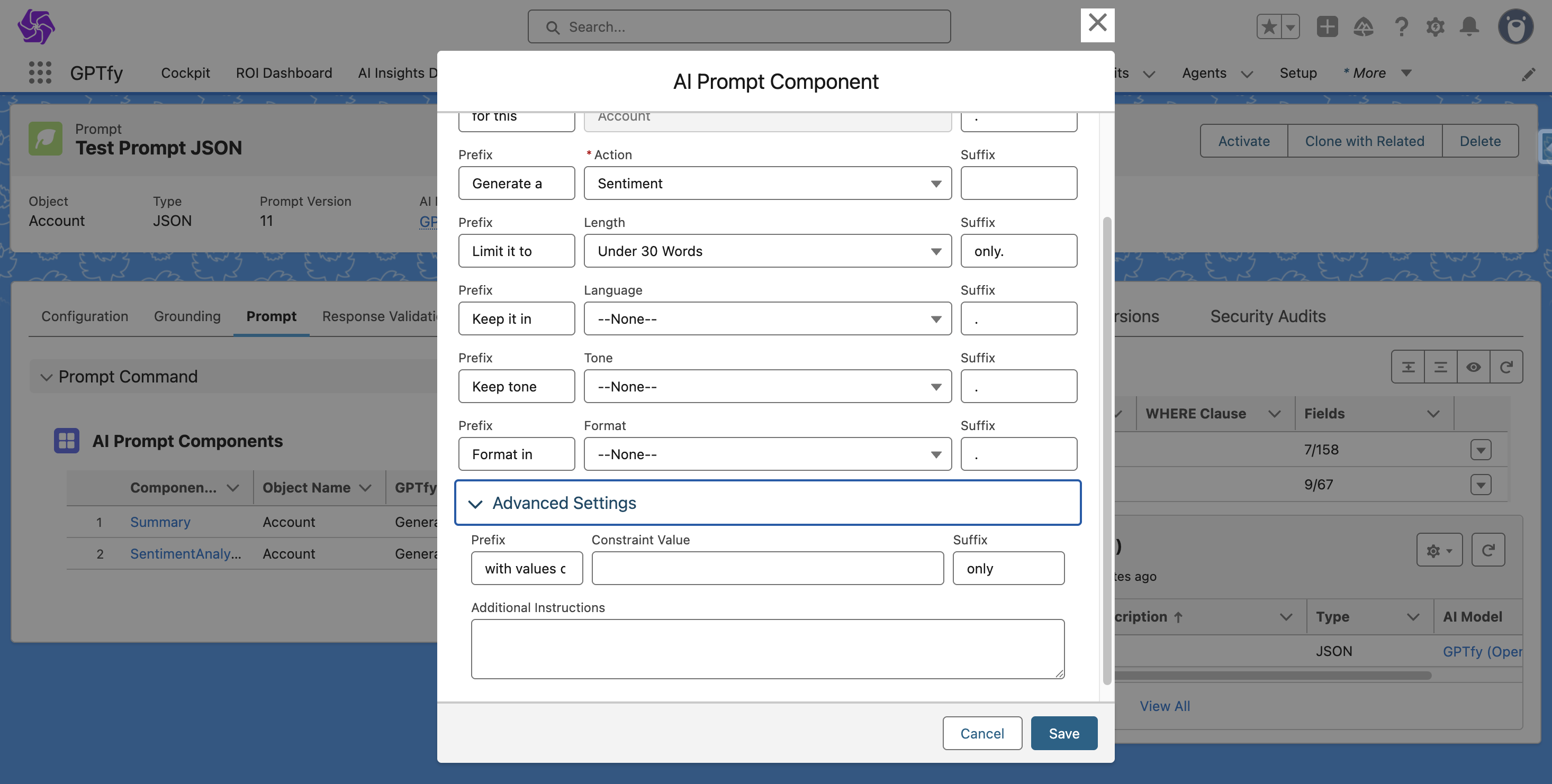
Tip: Additional Instructions can now be dynamically entered by users if 'Allow User Input' is enabled, enhancing response relevance.
4. Create and Map Actions
To auto-update Salesforce fields based on AI outputs:
- Navigate to the Actions tab on your prompt
- Click New Action → Choose:
- Update Field
- Fill in:
- Target Object (must match your Prompt Component Object)
- Field to update
- AI Response Node (choose which part of AI output to map)
- Append Timestamp (optional)
Note: Users can also update and delete the created prompt component.
5. Test Your Setup
- Use the Test tab inside Prompt Builder
- Select a test record
- Click Run to validate AI-generated responses and field updates
Additional Best Practices
- Always test prompt updates on sandbox records first
- Use Additional Instructions to fine-tune the output for different contexts
- Ensure proper Field Mapping in Data Context Mapping to avoid missing data during updates
Key Benefits
- Save hours of manual updating effort
- Ensure consistency in customer-facing communications
- Empower your teams to move faster with accurate CRM updates